
DragnCards Tutorial
Initial online play is available using a Plugin in DragnCards. This is a web based application, and does not require you to install anything.
**Please note - this plugin is very new. If you see errors, head over to the Decipher Discord linked here to discuss, or post in the DragnCards Discord. I will try to resolve as quickly as I can.
Reference the Online Rules Document while playing.
Video Tutorial:
Getting Started:
- Head over to DragnCards
- Create a free user account or login.
- Click on the "WARS Trading Card Game" Plugin. (You can Favorite it to keep it on the top).
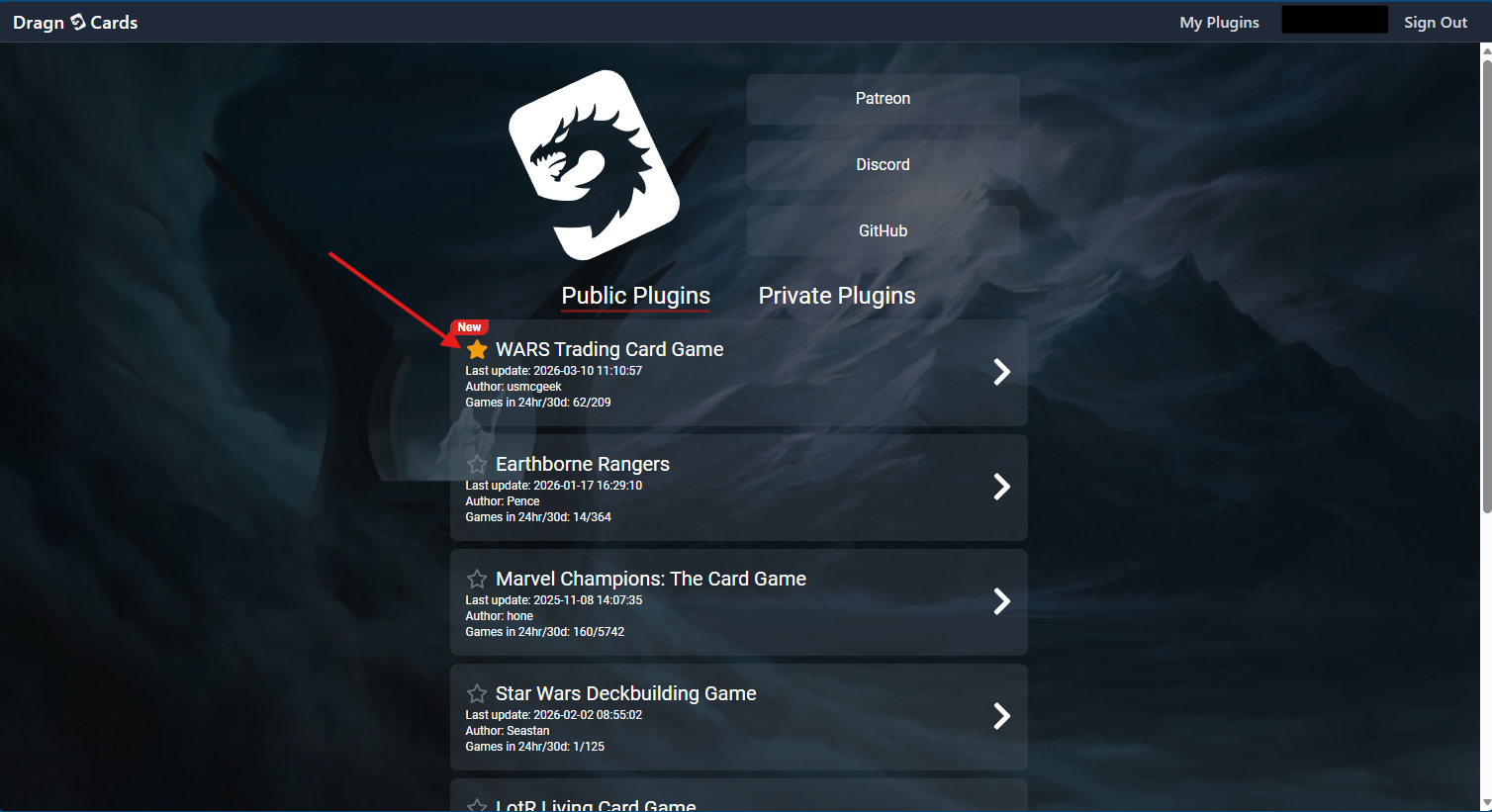
Click on the "WARS Trading Card Game" Plugin. You can Favorite it. - On the Plugin Page for WARS, you will see several options.
- "Create Room": Will allow you to make a Private or Public Room.
- Use a Public Room to play a game with somebody.
- Use a Private Room to create decks and test keys.
- "Active/Total Rooms": Displays a list of the current game rooms.
- "Looking for Game": displays people wanting a game and assists with finding a game.
- "Tutorial": will bring you to this page you are reading.
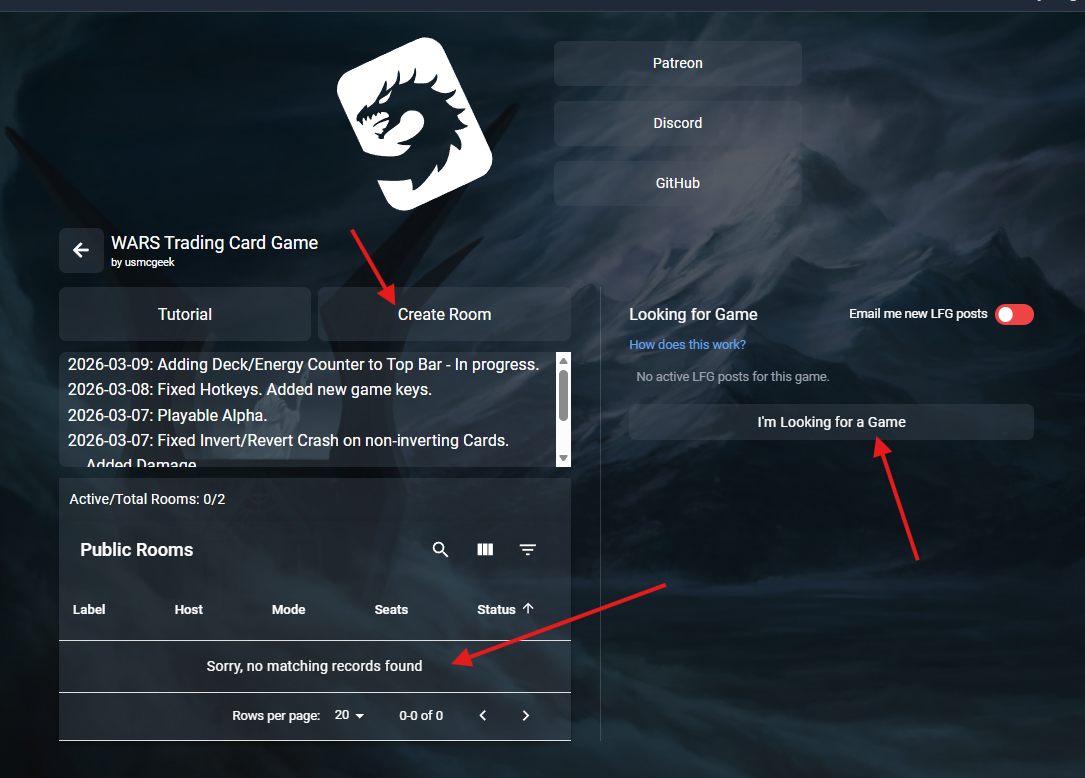
WARS Trading Card Game Plugin Page - In the Game Room - you will see lots of options.
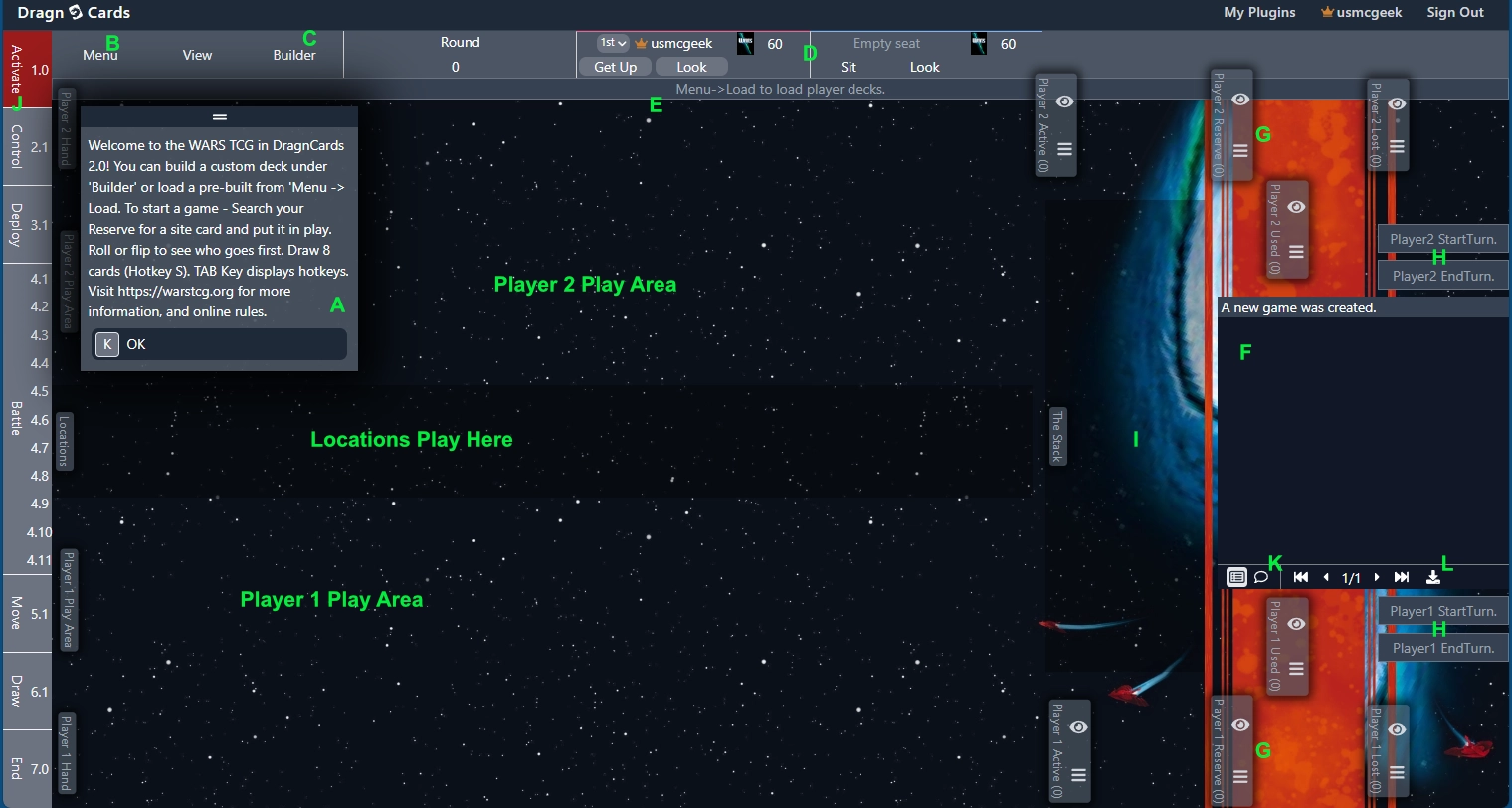
Game Room Overview - A: Welcome prompt with helpful information - READ THIS and then click OK.
- B: Menu with lots of choices. Key items are "Load" to load decks or pre-built decks. Also, "Close Room" let's you mark the winner and exit the game. (Tournament Win Conditions are listed).
- C: This is the Deck Builder screen where you can create, save, and download Custom Decks. You can also make them Public for people to use.
- D: Player Bar. Player 1 will be the person that created the Room. Player 2 must choose "Sit" in order to join the game. (Energy Icon Counters are currently in progress and will eventually track your total Energy and notify on Win Conditions)
- E: Phase Helper Text - Helpful information for each phase and hotkeys are displayed here.
- F: Game Log - tracks actions in the game and displays information
- G: Player Decks - your Reserve, Active, Used, and Lost are here. There is a "hamburger" menu with action choices. Also, you can use the Eyeball to look through the deck.
- H: Start Turn and End Turn Buttons. Start Turn logs the player starting their turn for the Game Log. End Turn will log the player ending their turn, move the Used pile to bottom of reserve, set the Phase tracker to Activation Phase 1, update the Round Counter, and notify the other Player it is their turn.
- I: Shared Stack location. Use this area to temporarily place Battle Destiny cards, or interrupts and such when tracking resolution before they go to Used or Lost.
- J: Game Phase/Step Tracker - This tracks and clearly communicates what phase and step the game is on. It writes this to the Log and displays a notice to players. You can advance through these using the Down-Arrow or you can skip ahead by click on one. IMPORTANT NOTE FOR BATTLES!: If you complete the battle phase and want to declare a new battle - USE THE UP ARROW to revert phases to 4.1 again. If you mouse click on 4.1, it will advance the game round.
- K: This button opens Player Chat
- L: Downloads a copy of the game log.
- Use the "TAB" Key to display a pop-up of hotkey choices
- Game/card automations are not enforced. There are options to "activate an ability" on cards - this simply writes to the log that you "Activated an ability of <CARD NAME>". You will need to communicate with your opponent.
- "Create Room": Will allow you to make a Private or Public Room.